

How to Configure BCC Email Address(es) and Email Footer Language for Email Campaigns
Overview
Use Campaign User Groups to automatically apply BCC email address(es) and email footer language to email campaigns sent by designated users or advisors.
Create a User Group
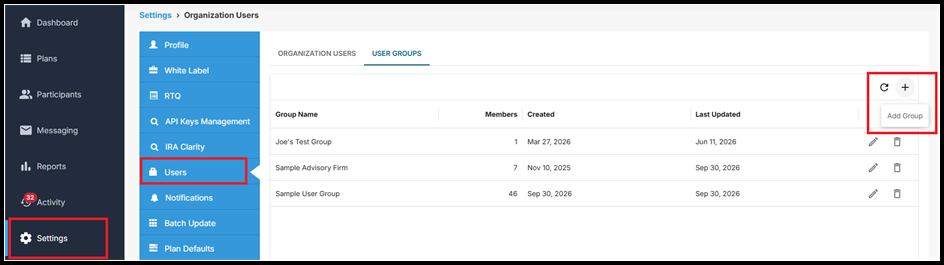
- Navigate to Settings > Users.
- Select the USER GROUPS tab.
- Click the + Add Group icon.
Complete User Group Setup
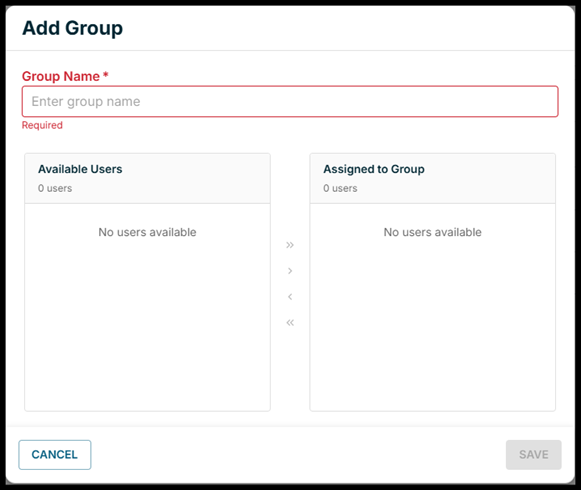
- Enter a Group Name.
- Assign users or advisors to the group by moving them from Available Users to Assigned to Group using the arrow controls.
IMPORTANT
- Users will appear in Available Users only after they have been created within the organization.
- All users assigned to the same User Group will share the same BCC email address(es) and email footer language settings when email campaigns are sent.
- Click Save.
Add BCC Email Address(es) and Email Footer Language
- Navigate to Settings > Campaign Admin.
- Select the USER GROUP SETUP tab.
- Locate the User Group and click the Edit icon.
- Enter the desired BCC email address(es) and email footer language in the Campaign User Group Setup section.
- Click Save.
IMPORTANT
- Multiple BCC email addresses may be entered using a comma-separated format.
- All BCC email domains must be DMARC authenticated.
- For additional information, refer to How to Get Your Email Domain(s) Authenticated with DMARC.
Assign a User Group to a User or Advisor
To apply the BCC and footer language settings, each user or advisor must be assigned to a User Group.
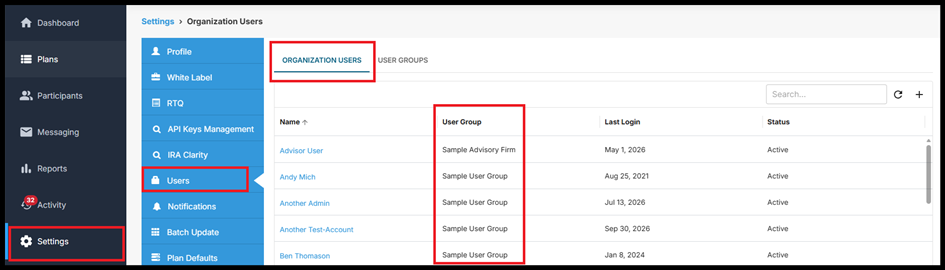
- Navigate to Settings > Users.
- Select the ORGANIZATION USERS tab.
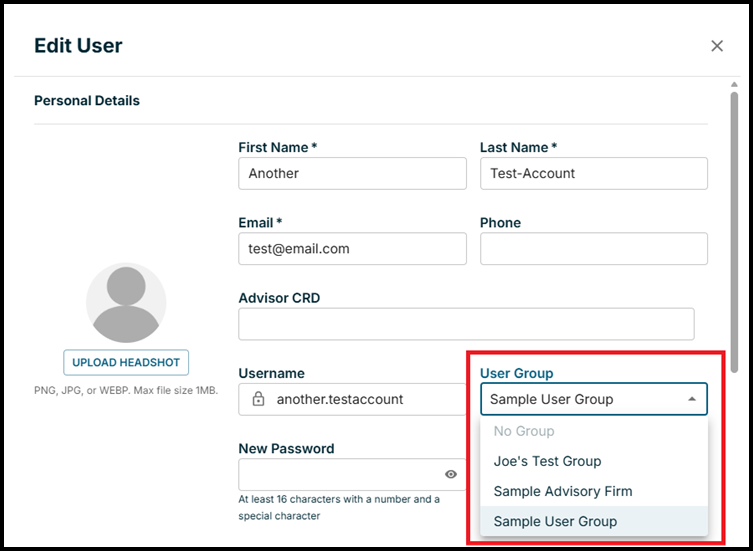
- Open the desired user record by selecting the user’s name.
- In the Edit User screen, select the appropriate User Group.
- Click Save.
View User Group Assignments
- Navigate to Settings > Users.
- Select the ORGANIZATION USERS tab.
- Review the User Group column to see the assigned User Group for each user or advisor.
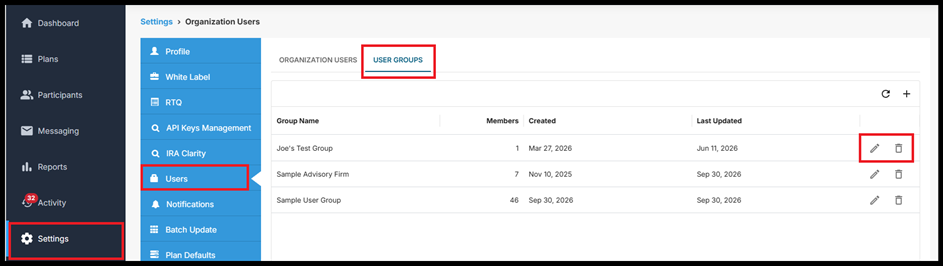
Edit or Delete a User Group
EDIT A USER GROUP
- Click the Edit icon.
- Update user assignments or group settings.
- Click Save.
DELETE A USER GROUP
- Click the Delete icon next to the User Group.
- Confirm the deletion when prompted.
NOTE
Changes to BCC email address(es) and email footer language apply to users and advisors assigned to the selected User Group and will be used for future email campaigns.